PowerShell For Anyone
It's worth learning a bit of PowerShell if you work on Windows. Here are the PowerShell commands and patterns I use often.
Quick Intro to PowerShell
PowerShell is a shell program for automating tasks on a Windows machine (it's cross platform but I don't really use it on Linux). It comes installed on Windows and can be opened by searching for it, or with the shortcut: Windows Key + X, I.
I'm assuming you know about command lines, terminals, and shells. Basically you can control a computer by typing commands to a command line interface (CLI) that is displayed in a terminal program. The commands are interpreted by a shell program (e.g., PowerShell, Bash) that talks to the operating system and performs (e.g., system calls, etc.) the work specified by the commands. You can read a better explanation here.
The commands understood by PowerShell are called cmdlets (pronounced command-lets). Cmdlets are Verb-Noun pairs. For example, Set-Location is the cmdlet to change the current directory. Cmdlets can take parameters, e.g., -Path which is the path to a file.
Windows Terminal
The terminal program I use is Windows Terminal. It has handy features like multiple tabs and panes. It's now the default in Windows 11 and I set it to open on start-up.
Listing files in a directory
A PowerShell session will be at a location, also known as the current directory. For example:
PS C:\Windows>
PS means the terminal program is running a PowerShell session. This session is currently at the location C:\Windows. The > symbol is the prompt and indicates that the session is ready to receive commands.
The GUI equivalent would be having File Explorer open at C:\Windows. But, unlike File Explorer, you can't visually inspect the folder's contents. A shell programs has a command line interface (CLI), so you have to enter the command that lists the folder's contents. In PowerShell the command (cmdlet) is Get-ChildItem:
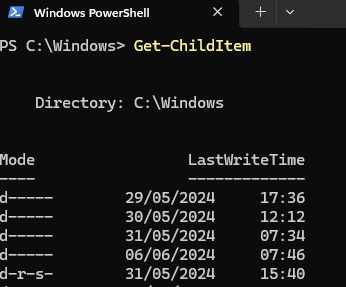
After hitting enter the cmdlet is executed, the operating system handles the call, and output is returned to the terminal on the lines below the cmdlet. As you can see it returns all the files and directories in C:\Windows.
Aliases
I don't usually write out the full command Get-ChildItem, I use an alias. The alias for Get-ChildItem is gci, or, the one I use, dir, which works in lots of other operating systems.
You can see all the aliases with: Get-Alias. Or the alias for Get-Alias: gal
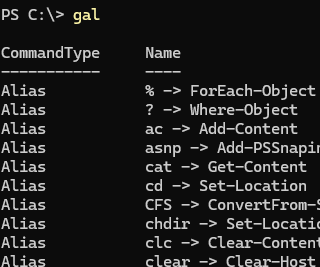
If you're unsure about an alias (e.g., spps) you can pass it to Get-Alias (gal) to find out:
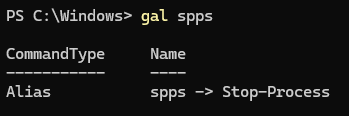
As can be seen spps is the alias for Stop-Process.
Locating files
The Get-ChildItem (or gci or dir) command from earlier has a -Path parameter which narrows the search making it a good way to find a file or files in a directory, or sub-directory if you use the -Recursive parameter. You can use wildcards (*) as well.
This example finds all the JSON files in the current directory and any subdirectories:
gci *.json -Recurse

# -Rcurse can be shortened
dir *.json -r
Notice I didn't use the -Path parameter. This is because it's a positional parameter and the first parameter to Get-ChildItem is -Path
Changing the working directory
Set-Location changes the current working directory. It's like clicking through File Explorer until you get to the right folder. The alias everyone uses is cd, for current directory. Remember that paths in Windows use a backslash:
PS C:\Windows> cd C:
PS C:\>
So now the current directory is at C: (the root).
Some other patterns:
# Go up one directory
cd ..

# Use of relative paths
cd ..\some-folder\
Clearing the terminal
The terminal can get busy with commands and their outputs. Clear it with Clear-Host (alias cls). Another option for clearing the terminal is Ctrl + l, which isn't a shortcut for Clear-Host, it just moves the window down, so if you scroll up you'll see the previous commands.
Viewing history
cls clears the screen but the history is still available and can displayed with Get-History or simply h:
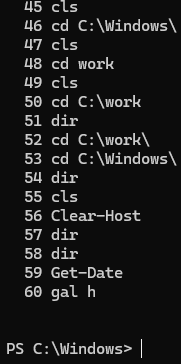
Notice how previously run cmdlets are numbered. Let's say you wanted to rerun a command. You can with # followed by the number, and then tab complete (i.e., press tab).
Creating things
New-Item (ni) is the cmdlet for creating things, e.g., files and folders (aka directories).
Directories
# Create the foo directory
New-Item -Type Directory foo

# Create the foo directory
mkdir foo
mkdir also creates directories and, like dir, is found in other shell languages / platforms.
Files
Pass the new file's name to the Path parameter:
# Creates bar.txt
New-Item -Path bar.txt

# Creates somefile.txt, without -Path
ni somefile.txt
Piping outputs
A powerful feature in shell languages is being able to "pipe" the output of one command to another command. This is done with the pipeline ("|") operator.
A common task is sending output to a file. This is achieved with the Out-File cmdlet:
'This is some content' | Out-File out.txt
In the above example the text string "This is some content" is sent to a file. Another example is piping the output of Get-Date to a file.
Get-Date | Out-File date.txt

# a shorter way of writing it
Get-Date > date.txt
Reading files
Display a file's contents with Get-Content (gc).
Get-Content .\date.txt

# output
# 10 September 2024 12:38:54
A useful pattern is copying and pasting a file's contents without opening it. Imagine you have a SQL script saved in a file (e.g., select.sql):
SELECT
*
FROM Sales.SalesOrderDetail
You can get its contents and pipe it to the clipboard (i.e., copy it) with:
Get-Content .\select.sql | Set-Clipboard

# using aliases
gc .\select.sql | clip
The script can now be pasted.
File system tasks
All that clicking around you do in File Explorer to get things done can be done faster in PowerShell. Not always. Sometimes it's just quicker to drag a file with the mouse, but often in the time taken to get two windows side by side, you could have done it in PowerShell.
Copying and moving
Let's say you've got two directories, foo and bar, and you need to copy or move the date.txt file from foo to bar. Use Copy-Item (cp) or Move-Item (mv) respectively:
# Assuming foo and bar are located at the root of the C drive
# Copying
Copy-Item -Path C:\foo\date.txt -Destination C:\bar

# Moving
Move-Item -Path C:\foo\date.txt -Destination C:\bar
Deleting
Remove-Item (rm)
rm sales.csv
Testing for existence
When scripting it's useful to check a file or directory exists. Do that with Test-Path:
Test-Path .\foo\
Often Test-Path is used with the conditional command if. For example:
if (Test-Path C:\config.json) {
    # Parse the config
}
Joining paths
This one sometimes comes in handy:
Join-Path C: work
C:\work
Variables
You need to know how to store and use variables. Prefixing a string with $ declares a variable:
# an integer
$myInteger = 123

# a string
$myString = 'hello world'
You can store the output of cmdlets in variables:
$content = Get-Content -Path date.txt
Finding text within files
Say you've got a directory full of text files and you need to know which file(s) contain a pattern. The cmdlet for doing this is Select-String (sls).
First use this to set up the demo:
cd C:
mkdir somefiles
cd somefiles
1..10 | ForEach-Object {
    $file = $_.ToString() + ".txt"
    'Hello, World!' | Out-File $file
}
This snippet creates a directory called C:\somefiles and then creates 10 files (1.txt, 2.txt,..., 10.txt) inside it each containing the text "Hello, World!".
The first example of Select-String finds the pattern "hello" inside one file.
Select-String -Path .\1.txt -Pattern 'hello'

# output
# 1.txt:1:Hello, World!
This output indicates that a match was found. If you want to search every file in the directory then you would do this (sls being the alias of Select-String):
PS C:\somefiles> dir  | sls -Pattern 'hello'

1.txt:1:Hello, World!
10.txt:1:Hello, World!
2.txt:1:Hello, World!
3.txt:1:Hello, World!
4.txt:1:Hello, World!
5.txt:1:Hello, World!
6.txt:1:Hello, World!
7.txt:1:Hello, World!
8.txt:1:Hello, World!
9.txt:1:Hello, World!